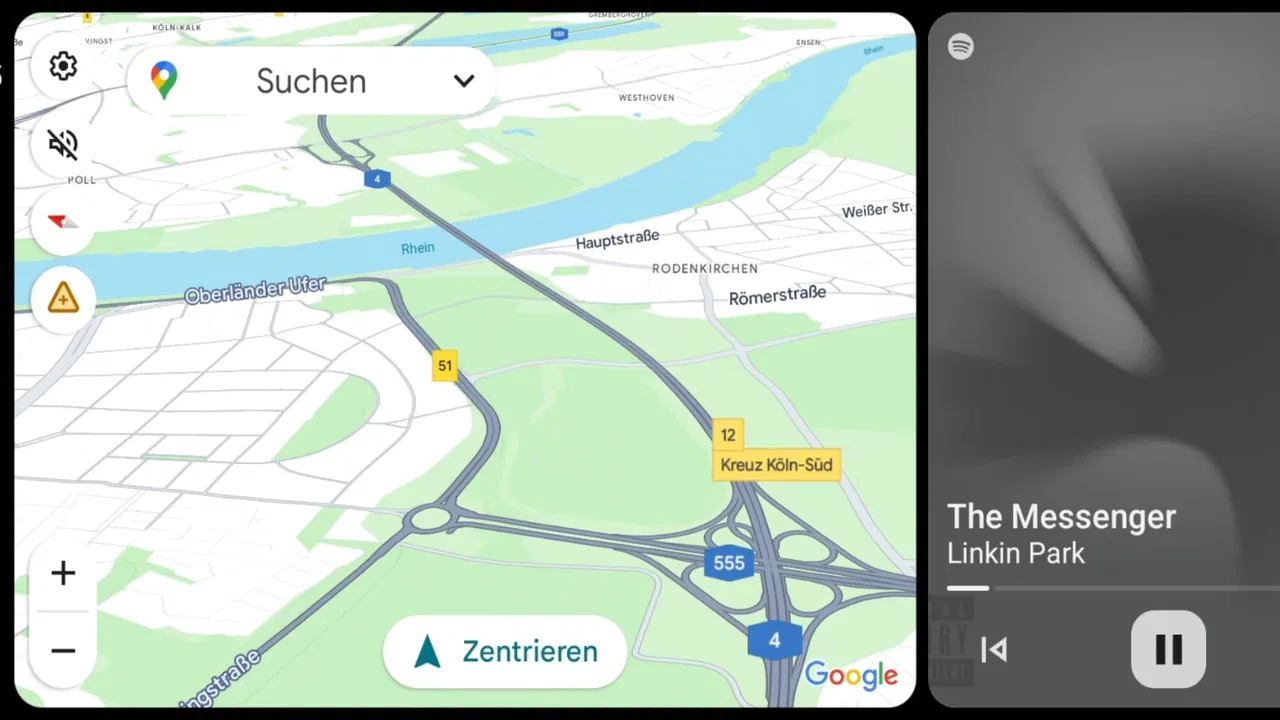
Open Headunit
- 4.1
- Rating
- 10.00K
- Installs
- $3.99
- Price

 Analysis by App-foxy
I approached Open Headunit as a practical tool rather than a typical navigation app. Its purpose is to turn an Android tablet into an Android Auto head unit, using either a USB connection or a wireless setup. That makes it interesting for an older tablet, a spare screen, or a vehicle where you want a larger dashboard display without replacing the entire stereo system.
My first impression is that this is a focused app for a specific job. It is not trying to replace every navigation application on your phone, and it is not simply a map viewer. The important question is whether your phone, tablet, cable, wireless connection, and vehicle environment can work together reliably. When that chain is prepared properly, the app can make a tablet feel much more useful in the car. When one part of the chain is unsuitable, the experience can look like an app failure even when the real problem is elsewhere.
Open Headunit is listed in the Maps & Navigation category and comes from André Rinas. It is aimed at Android users who want an Android Auto-style display on a separate Android device. The app costs $3.99, carries an Everyone age rating, and has reached over ten thousand installs. Its average is 4.1 from around three hundred ratings, which suggests a generally positive reception but also hints that setup conditions matter greatly from one user to another.
You May Also Like

 AccuWeather: Weather Radar
AccuWeather Review: A Quick, Clear Forecast for Everyday Decisions
For everyday plans, the best forecast is the one you can understand quickly. AccuWeather makes rain timing, radar, and local conditions easy to act on, with a few trade-offs.

 Hill Climb Racing
Why Hill Climb Racing Still Turns Crashes Into One More Run
A tiny car, a bumpy hill and one more upgrade: Hill Climb Racing keeps resurfacing because its simple chaos makes every near-miss feel personal.

 AliExpress - Shopping App
AliExpress Makes Global Shopping Feel Personal, but Shoppers Bear the Risk
AliExpress turns a global marketplace into a pocket-sized discovery engine. Its reach is useful, its shopping loop compelling, and its trade-offs easy to miss.

 Lords Mobile: Kingdom Wars
Lords Mobile Is a Kingdom-Building Routine, Not a Quick Match
A case-by-case verdict on the building, battles, device demands, and social commitments that make Lords Mobile rewarding for some players and exhausting for others.

 PDF Scanner app - TapScanner
TapScanner Makes Paperwork Easier to Capture, Check, and Share
TapScanner makes scanning with a phone feel less like a rescue operation and more like a dependable step in getting work done. Its capture tools are useful, though not flawless.

 Block Blast!
 Shows How Much a Puzzle Game Can Leave Out
A quiet grid game shows why puzzle players increasingly value instant clarity, repeatable skill and low-pressure play—and where the genre still needs to catch up.
More From Our News Desk
View All News


Where the setup usually gets stuck
The most common source of frustration with this kind of app is the expectation that installing it will immediately create a complete dashboard system. In practice, Open Headunit is one part of a connection between devices. The phone has to provide the Android Auto experience, while the tablet acts as the receiving screen. If the phone does not recognize the connection, the tablet cannot display what it is supposed to display.
I would begin by deciding which connection method suits the installation. USB is usually the sensible first test because it removes some wireless variables. A cable gives you a more controlled path between the phone and tablet, while wireless use is more convenient once the basic arrangement is already understood. Starting wirelessly can make it difficult to tell whether a problem comes from pairing, network discovery, power management, or the app itself.
The cable is another easy place to get stuck. A cable that charges a device may not necessarily provide the data connection needed for communication. A loose connector, a damaged cable, or a tablet port that is worn can produce an inconsistent result: the tablet may appear to react, but the session does not actually start. I would test with a short, known-good data cable and avoid routing it under pressure or at a sharp angle.
There is also a difference between using a tablet on a desk and using one in a vehicle. In a car, the screen may be mounted far from the phone, the cable may be exposed to movement, and the tablet may be competing with other wireless connections. A setup that works for ten minutes at home can fail once the vehicle starts moving or the devices change their power state.
Wireless use adds convenience, but it also adds another layer to diagnose. The phone and tablet need to discover each other in the expected way, and the connection must remain available while the screen is active. If the wireless session repeatedly disappears, I would not immediately reinstall the application. I would first test the same devices close together, remove unnecessary wireless variables, and confirm that the phone is actually ready to provide Android Auto.
One non-obvious point is that the tablet’s role is different from that of a normal Android Auto car receiver. A built-in vehicle system is designed around a fixed screen and a known hardware environment. A general Android tablet has its own display behavior, sleep settings, charging limits, and background restrictions. Those differences can explain why the same phone behaves differently with a tablet than with a factory-installed unit.
Check the phone before blaming the tablet
Before opening Open Headunit, I would make sure the phone itself can use Android Auto normally. If Android Auto is disabled, restricted, outdated, or unable to establish a session elsewhere, the tablet does not have a healthy source to receive. This is especially important for someone moving from a conventional car display, because the phone may have accumulated connection settings that were never noticed during ordinary use.
I would also unlock the phone during the first test and keep both devices close. This is not necessarily how the final installation will operate, but it removes avoidable uncertainty. Once a connection has worked consistently, you can experiment with screen-lock behavior, mounting position, and cable routing. Testing everything at once makes it hard to identify the actual weak link.
Open Headunit runs on Android devices using Android 5.0 or later, and the current version is 3.2.5. That broad operating-system requirement makes the app suitable for many older tablets, but compatibility on paper does not guarantee an equally smooth experience on every model. Older hardware may have slower startup, more aggressive background management, or a less reliable wireless radio. I would treat an old tablet as a useful candidate, not as a guaranteed replacement for dedicated car hardware.
A sensible first installation routine
My preferred setup routine would be deliberately boring. I would charge the tablet, update the phone’s relevant system components, install Open Headunit, and place both devices where they can be handled safely. Then I would try a wired session before attempting a wireless one. After the first successful connection, I would close and reopen the session to see whether it can recover without repeating every step.
That last check matters more than a single successful launch. A dashboard display is useful only if it can be started again after a short stop, a device restart, or a temporary cable disconnect. If the app works once but requires a complete reset every time, the installation may be too fragile for daily driving.
Keep the initial test stationary. I would not troubleshoot while driving, and I would not handle a loose tablet on the road. Set up the screen position, cable path, and phone location before moving. Once the connection is stable, the driver should be able to leave the devices alone and concentrate on the road.
Recovering a session without starting from scratch
When a session fails, the fastest solution is usually a controlled reset rather than repeated tapping. I would close the connection on both devices, disconnect the cable if using USB, wait briefly, and reconnect in the same order each time. A consistent sequence makes it easier to notice whether the failure occurs during device detection, application launch, or the handoff to Android Auto.
For a wired setup, I would check the physical connection at both ends before changing software settings. If the tablet is charging but the session is not starting, that is a reason to question the cable or data path rather than assume the app has frozen. Trying another suitable cable can be more informative than reinstalling the application.
For wireless use, I would bring the phone and tablet close together and temporarily simplify the environment. If the connection succeeds nearby but fails in the mounted position, placement or interference may be involved. If it fails even when the devices are close, I would return to a wired test. This creates a useful baseline and prevents wireless troubleshooting from becoming guesswork.
Battery-saving behavior deserves special attention. Android devices can limit background activity when the battery is low or when an app has not been used recently. A tablet that dims, sleeps, or closes background tasks can interrupt a head-unit session. I would review the tablet’s normal battery and screen settings, keep the device adequately powered, and avoid assuming that a connection problem is caused by Open Headunit when the tablet is simply putting its components to sleep.
A practical recovery habit is to identify one change at a time. Do not replace the cable, switch from USB to wireless, restart both devices, and alter battery settings in one attempt. If the next connection works, you will not know why. Changing one variable per test takes longer initially but produces a setup you can actually maintain.
Another useful distinction is startup failure versus mid-session failure. If the app never begins a session, focus on recognition, compatibility, and connection order. If it starts correctly and later drops, focus on cable movement, power management, wireless stability, heat, or the phone losing its Android Auto connection. These are different problems and deserve different checks.
When the tablet appears connected but the experience feels wrong
A tablet can show signs of activity without delivering a dependable driving display. The screen may remain awake while the session is incomplete, or the phone may be connected for charging without transferring the expected data. I would judge success by whether the intended Android Auto interface is available and remains usable, not merely by whether an icon changes or the tablet receives power.
Screen orientation and mounting are also worth testing before committing to a permanent installation. A tablet that rotates unexpectedly, sits too low, or reflects sunlight can be uncomfortable even if the connection is technically perfect. Open Headunit can solve the display role, but it cannot turn an unsuitable mounting position into a safe one.
Phone placement matters too. A phone buried under objects, left in a weak-signal area, or connected to several competing devices may behave differently from a phone placed where its connection remains stable. I would keep the phone accessible for the first few tests, then secure it once the workflow is predictable.
When Open Headunit is not the cause
It is tempting to blame the receiving app whenever the screen does not behave as expected, but the complete setup includes several independent systems. The phone’s Android Auto support, the tablet’s Android implementation, the physical connection, wireless behavior, and vehicle power environment all contribute to the result.
For example, if the phone cannot start Android Auto in any environment, installing an older or newer build of Open Headunit is unlikely to solve the underlying issue. Likewise, if the tablet repeatedly shuts down its wireless or USB behavior, the app may be functioning normally while the operating system interrupts the session.
The vehicle can introduce its own complications. A loose power adapter, an unstable charging source, or a mount that presses against a connector can create symptoms that look like software crashes. I would test the tablet away from the vehicle first, then reproduce the problem in the car. That comparison can quickly show whether the installation itself is responsible.
There is also a human-factor issue: a tablet is larger and more flexible than a dedicated head unit, but that flexibility requires more planning. The driver should not need to reach across the cabin, reconnect a cable, or restart an app during a journey. If the setup needs regular attention, it is not ready for daily use, regardless of how well it performs during a stationary demonstration.
Compared with ordinary navigation apps, Open Headunit is less about providing maps directly and more about presenting a compatible Android Auto environment on another Android screen. A conventional navigation app is easier if all you want is directions on the phone or tablet itself. A dedicated car stereo is better if you want fixed hardware, integrated controls, and a purpose-built installation. This app occupies the middle ground: it can reuse hardware you already own, but you take on more responsibility for compatibility and setup.
That trade-off is most attractive for someone with a spare tablet and a clear reason to want a larger display. It is less attractive for a person who expects plug-and-play behavior, has no suitable mounting solution, or needs the reliability of a factory-integrated system. The low one-time price is appealing, but the real investment is the time spent making the complete arrangement dependable.
Who gets the most value from it
I can see Open Headunit working well for a driver who has an older but usable Android tablet and wants to give it a second life. It may also suit someone testing a dashboard layout before buying dedicated hardware, or a passenger who wants a larger Android Auto display during trips. The app’s Everyone rating makes it broadly accessible from a content standpoint, although the physical installation still requires adult judgment and safe handling.
A realistic everyday scenario would be a driver who keeps the tablet mounted in a fixed position, connects the phone by USB before setting off, and uses the tablet only after confirming that the session is active while parked. In that arrangement, the app can be a practical way to avoid replacing the vehicle’s entire audio system. The key is that the workflow is prepared in advance rather than improvised at the roadside.
I would skip it if you need a guaranteed wireless experience with no troubleshooting, if your tablet has unreliable ports, or if you are unwilling to secure the display properly. I would also choose a dedicated head unit over this solution when steering-wheel controls, installed audio integration, or a permanent professional finish are priorities. Open Headunit is a clever way to repurpose Android hardware, not a universal substitute for every kind of car upgrade.
My practical verdict after weighing the friction
The real strength of Open Headunit is its focused idea: reuse an Android tablet as an Android Auto display instead of treating that tablet as just another map screen. That can be genuinely useful when the hardware is already available and the user is comfortable checking cables, connection order, power behavior, and mounting.
I like that the app supports both USB and wireless approaches because they serve different priorities. USB is the better diagnostic starting point and may be the more dependable daily choice in a carefully routed installation. Wireless is more convenient when it behaves consistently, but it should be treated as the second stage of setup rather than the easiest first experiment.
The limitations are equally clear. The app cannot compensate for an incompatible phone, an unstable tablet, a poor cable, or an unsafe mount. It also asks more patience than a normal navigation download. Someone looking for immediate directions should use a standard navigation app; someone seeking a polished permanent dashboard may be happier with dedicated hardware.
For me, the purchase makes sense when the goal is specific: turn a suitable Android tablet into a larger Android Auto screen and accept a little hands-on setup. The price is modest, the app has a clear purpose, and its current version is 3.2.5. I would recommend it to technically comfortable Android users who are willing to test the arrangement while parked and refine it before relying on it. I would not recommend it as a blind purchase for anyone expecting every phone, tablet, cable, and vehicle to work together automatically.
In short, Open Headunit is best judged as a bridge between existing Android hardware and an in-car display. If you approach it as a small installation project, check the connection method carefully, and build a recovery routine that does not require attention while driving, it can be a smart way to extend the life of a tablet. If you want zero setup friction, the usual alternatives remain the safer and simpler choice.
FAQs for Open Headunit
01What is Open Headunit and what does it do?
Open Headunit is an Android-based car infotainment application designed to work as a head unit for Android Auto. It can display compatible navigation, music, communication, and other driving-related features on an Android phone or tablet installed in a vehicle. The app is mainly intended for users who want to repurpose an older device as an in-car screen, although compatibility and available functions may vary depending on the Android version, hardware, and Android Auto setup.
02Is Open Headunit compatible with my Android phone, tablet, or car?
Compatibility depends on several factors, including the Android version, USB or wireless connection support, screen hardware, Android Auto configuration, and the vehicle’s existing equipment. Open Headunit is generally aimed at Android devices being used as standalone displays, rather than being universally compatible with every factory infotainment system. Before downloading, check the project documentation and device requirements, and remember that performance can differ considerably between phones, tablets, and car models.
03Does Open Headunit require Android Auto or additional configuration?
In most use cases, Open Headunit is not a completely independent navigation and entertainment platform; it is intended to work with Android Auto-related functionality. You may need to enable developer settings, grant permissions, configure connection options, and pair the device correctly with your phone or vehicle. Setup can therefore take more time than installing a typical consumer app. Users should follow the official instructions carefully and test the connection while parked before driving.
04Can Open Headunit be used safely while driving?
Open Headunit can provide a larger interface for supported driving features, but it does not make every phone function safe or legal to use behind the wheel. Drivers should rely on voice commands, simple controls, and navigation guidance while avoiding typing, browsing, or changing settings in motion. Mount the device securely, keep the display within a comfortable viewing position, and check local laws regarding aftermarket screens and phone use before using the application on public roads.
05Is Open Headunit free, and are there any limitations or risks?
Open Headunit is generally associated with open-source Android head-unit projects, but availability, distribution method, and included features may differ between releases or versions. Some builds may require manual installation or technical adjustments, and unofficial downloads can carry security or stability risks. Download it only from a trusted project source, review requested permissions, keep Android and related components updated, and understand that bugs, connection failures, battery drain, or device overheating may occur on unsupported hardware.
Pros
- Supports Android Auto for a more convenient in-car experience.
- Can repurpose an Android device as an affordable head unit.
- Useful for testing Android Auto without dedicated car hardware.
- Offers a practical solution for older vehicles lacking modern infotainment.
- May work with various screen sizes and Android devices.
Cons
- Compatibility can vary widely between phones
- cables
- and car systems.
- Requires a separate Android device and a suitable mount for safe use.
- Setup may involve enabling developer options and adjusting permissions.
- Performance depends heavily on the host device’s hardware and Android version.
- Using a phone screen while driving can create safety and distraction concerns.

Open Headunit
Gallery